I LOVE my Silhouette Cameo! I’m seeing that comment all over the internet, too. Plus, I’ve been so inspired by what I have seen others doing with the Silhouette!
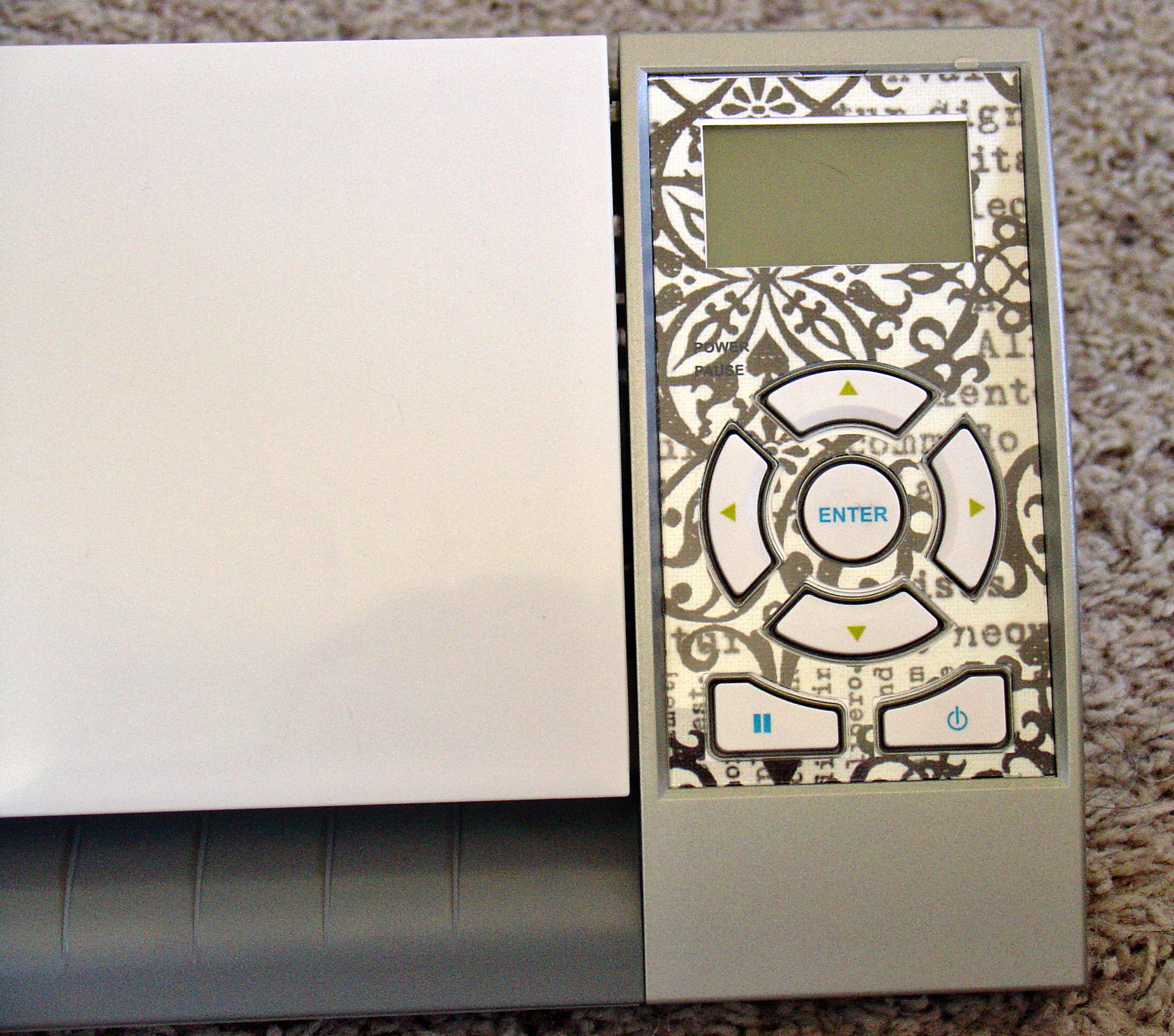
When I discovered that I could customize my Control Panel cover on the Cameo, you know I just had to do it!!
How cool is that!! Let me show you how I did it.
First just open your library in the Silhouette software. (I have the Silhouette Studio Designer Edition software.) Find the control panel pattern. Click to import it onto your page.
NOTE: I couldn’t find it. So, if that’s the case. Do the following:
- In your Silhouette Studio software, go to File (or Silhouette Studio menu for the Mac)
- Select Preferences -> Advanced -> Restore the Initial 51 Designs
Make sure you leave the size the way it is and just position it on your page where you want it. I’m using a scrap piece of my favorite paper, so I put it in the upper left hand corner.
Put your paper on your mat, load it into your machine and click on Cut.
There is a little opening at the top of the protective plastic covering on the control panel. use something non-sharp so you don’t damage it to lift it up. You could probably even use your fingernail.
Then just place your newly cutout panel, put the plastic cover back on, and you are so customized now!!
Next up…..matching vinyl swirls on the lid of the Cameo. Just gotta run to the store for some vinyl. Can’t wait! (UPDATE: See swirls here! And find out what I used instead of vinyl!)


I would adore to accomplish this to help quarry! Can not wait for my own equipment to arrive!